Figma Pie Chart
Figma Pie Chart
Preview
Figma Pie Chart
Figma Pie Charts
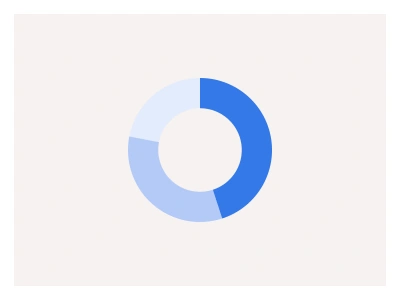
Pie charts display data as proportional segments within a circle, making them ideal for visualizing market share, budget distributions, and survey results. Pie charts instantly tell how each segment compares to the whole.
The pie chart draws proportional segments of one circle with a legend, ordered largest to smallest from the top, in full and semi-circular types with two to eight slices in distinct chart colours.
Pie Chart AI Prompt
Paste this into Claude, ChatGPT, or Figma Make:
Build a pie chart component in Figma as one set. Base: a circle divided into slices drawn as arc vectors with a thin white gap between them, a Segments property from 2 to 8 slices sized from largest to smallest clockwise from twelve o'clock, each slice in a distinct colour from the chart palette. Types: Full and Semi Circular. Booleans: percentage labels on each slice, leader-line labels outside the circle, a centred total, and a legend placed Right or Bottom with coloured dots and names. States per slice: Default and Hover where the slice lifts outward by a few pixels and shows a tooltip with value and percentage. Sizes: Small, Medium and Large. Build a dashboard example — a Market share card with the pie on the left and a legend list on the right with values and deltas — and a stat row of three small pies. Keep slice colours on the chart variables shared with the donut and bar charts and verify the slices sum to 100 percent in the sample data.
Pie Charts UI Best Practices
Arrange pie slices in a clear sequence — from largest to smallest, starting at the top. Assign each segment a distinct, contrasting color. Finally, verify that all slice values sum to exactly 100% to ensure your chart represents the data correctly.
Figma Pie Chart
Pie Chart
pie chart figma
figma pie chart
figma pie chart template
Interactive component
Premium Figma UI Kit & design resources
Explore high-quality Figma components, templates, and UI elements.