Figma Articles
Figma Articles
Preview
Figma Articles
Figma Article Blocks
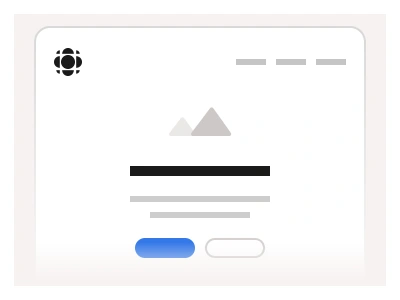
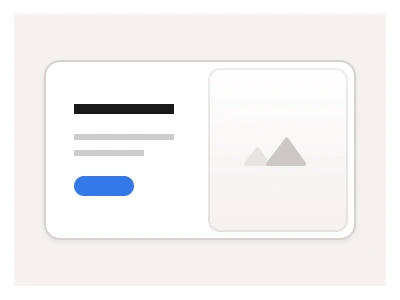
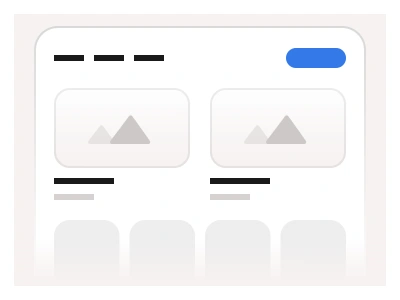
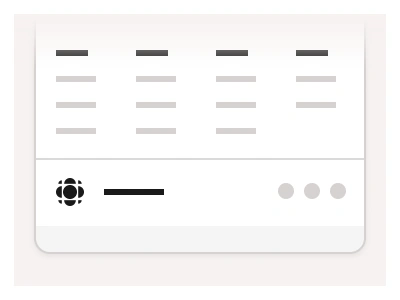
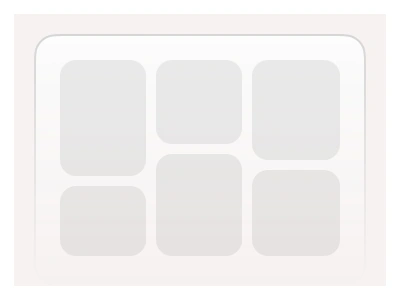
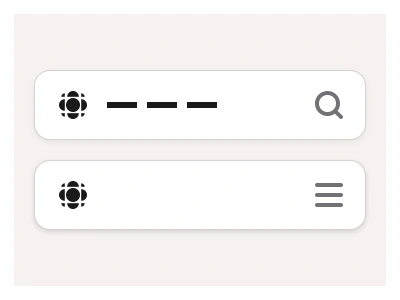
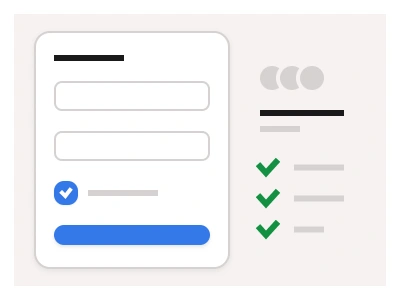
The article section includes blog examples and responsive article blocks. These blocks are optimized for text-heavy layouts and include cards and images, as well as essential navigation elements such as Buttons, Pagination, and Carousel.
Article layouts automatically adjust to any Desktop, Tablet, and Mobile screen sizes, ensuring blog posts look great on all devices. The templates support various blog layouts you can mix and match to create your custom blog in Figma.
Article blocks are part of the Figma Website Builder component. This component allows you to quickly assemble websites with Figma Sites.
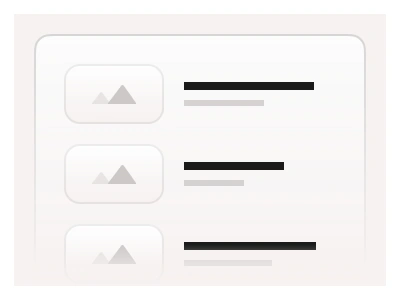
The file holds responsive article and blog blocks in desktop, tablet and mobile widths — cards with cover-image placeholders, titles and excerpts, plus pagination and carousel navigation — that plug into the kit's Figma Website Builder for assembling blog pages.
Article blocks vs the blog template
Article blocks are sections. Each one is a self-contained row (a featured card, a three-column grid, a carousel strip or a pagination bar) meant to be stacked inside the Website Builder with hero, features and footer blocks around it. The Blog template is the opposite: a finished set of pages (index, post, author) already assembled from these blocks. Start from the template when the goal is a complete blog; start from the blocks when a blog section lives inside a marketing site.
Every card shares one image ratio and the same text presets, so swapping a three-column grid for the two-column variant keeps headlines, excerpts and Read more links aligned without re-styling. Cover images are placeholder frames with image fills, so a drag-and-drop replaces the art and keeps the crop. The carousel and pagination rows are instances of the kit's Carousel and Pagination components, which is why the arrows and dots already carry hover and focus states.
Articles AI Prompt
Paste this into Claude, ChatGPT, or Figma Make:
Build a set of article blocks for a blog in Figma in desktop, tablet and mobile widths. Start with a featured-post card: a wide rounded card with a large cover-image placeholder, a bold two-line headline, a category tag and a short grey excerpt. Below it a three-column grid of article cards, each with an image placeholder, a headline, a one-line excerpt and a Read more link; drop to two columns on tablet and stack to one on mobile. Add a horizontal article carousel with previous and next arrow buttons and dot indicators, and a numbered pagination row — 1 to 10 with a next arrow — under the grid. Give every card auto layout so headlines wrap without breaking the row, and keep all image placeholders the same ratio. Use neutral greys for text and one accent colour for links, and name the frames by breakpoint — Desktop, Tablet, Mobile — so the blocks drop straight into a website-builder page alongside the kit's Buttons, Pagination and Carousel components.
Figma Articles
Figma Articles
design articles
blog examples
articles template
Website examples